 by
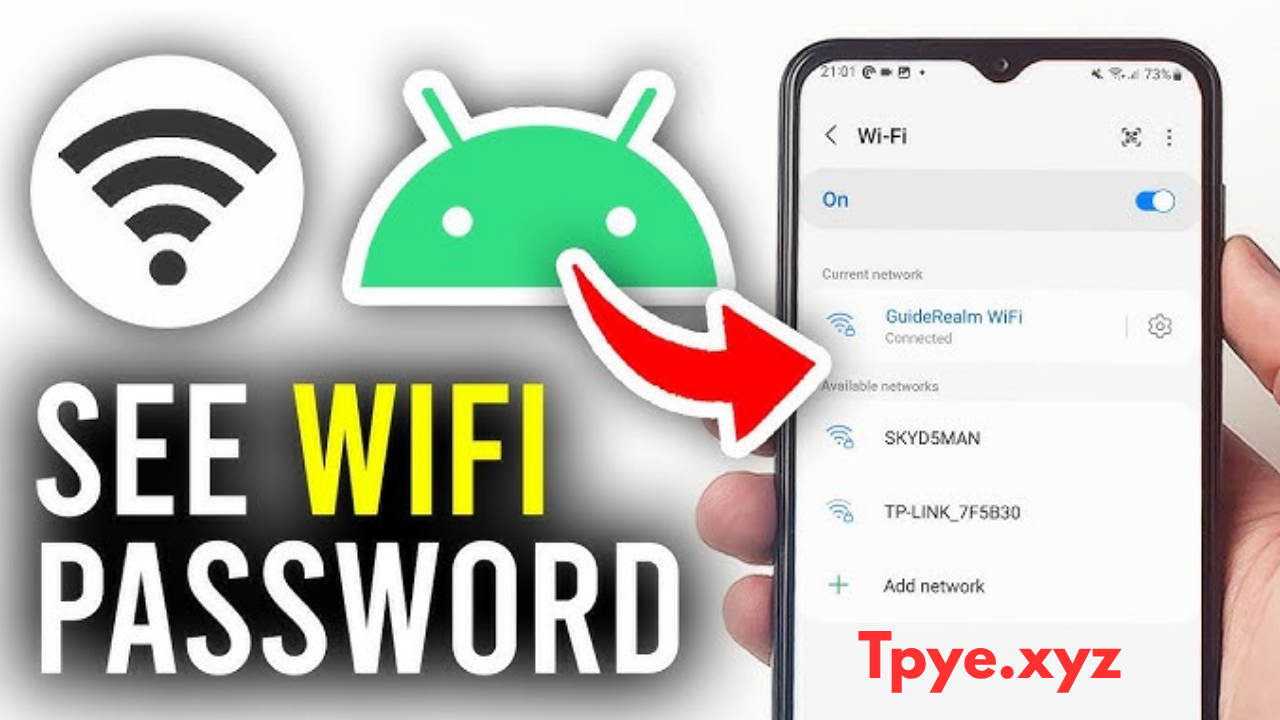
by Forgetting your WiFi password is very common. Many people set a strong password and later forget it. Most users think the only way to get the password back is to reset the router. But resetting the router is not always a good idea.
When you reset your router:
- All settings are deleted
- WiFi name changes to default
- All connected devices get disconnected
- You need to set up everything again
The good news is that in most cases, you can find your WiFi password without resetting the router.
In this complete 2026 guide, you will learn safe and legal methods to check your WiFi password from your router settings and connected devices.
Important Note Before You Start
You can only use these methods if:
- You are the owner of the WiFi network
- You have permission to access the router
- You know the router admin username and password
Do not try to access someone else’s network without permission. It is illegal and unsafe.
Method 1: Find WiFi Password Using Router Admin Panel
This is the best and most reliable method.
Step 1: Connect to the WiFi Network
Make sure your phone or laptop is already connected to the WiFi network.
If your device is connected, you can access the router settings.
Step 2: Find the Router IP Address
- 192.168.1.1
- 192.168.0.1
- 192.168.31.1
To check on Windows:
- Press Windows + R
- Type cmd
- Type ipconfig
- Look for “Default Gateway”
That is your router IP address.
On Android:
- Go to WiFi settings
- Tap your connected network
- Look for Gateway or Router address
Step 3: Open Router Login Page
- Open Chrome or any browser
- Type the router IP address in the address bar
- Press Enter
You will see the router login page.
Step 4: Login to Router Admin Panel
Enter:
- Admin username
- Admin password
If you never changed it, check the router sticker at the back. Many routers use:
- Username: admin
- Password: admin
or - Username: admin
- Password: password
If you changed it earlier, use your custom login details.
Step 5: Go to Wireless Settings
After login:
- Find Wireless Settings
- Click WiFi Settings
- Look for Security or WPA Settings
There you will see:
- Network Name (SSID)
- WiFi Password (WPA Key or Security Key)
Click “Show Password” option if available.
Now you can see your WiFi password without resetting the router.
Method 2: Find WiFi Password from Windows PC (If Already Connected)
If your laptop is already connected to WiFi, you can check the password easily.
Steps:
- Open Control Panel
- Go to Network and Internet
- Click Network and Sharing Center
- Click your WiFi name
- Click Wireless Properties
- Go to Security tab
- Tick “Show characters”
Your WiFi password will appear.
This method works only if your PC is already connected to the network.
Method 3: Find WiFi Password on Android Phone (2026 Method)
New Android versions allow password sharing easily.
Steps:
- Go to Settings
- Open Network & Internet
- Tap WiFi
- Tap your connected WiFi
- Click Share
You may need fingerprint or PIN verification.
A QR code will appear. Below the QR code, you can see the WiFi password.
You can also scan the QR code from another device to connect instantly.
Method 4: Find WiFi Password on iPhone
If your iPhone is connected:
- Go to Settings
- Tap WiFi
- Tap the “i” icon next to your network
- Tap Password
- Use Face ID or Touch ID
The password will be shown.
This feature works on newer iOS versions.
Method 5: Check Router Sticker (Default Password)
If you never changed your WiFi password:
Check the sticker on the back of the router.
It usually shows:
- SSID (WiFi name)
- WiFi Key (Default password)
- Admin login details
If the password was never changed, you can use this default key.
What If You Forgot Router Admin Password?
If you cannot login to router settings because you forgot the admin password:
Try these steps:
- Check router sticker for default admin login
- Try common usernames like admin
- Check ISP documents
- Contact your Internet Service Provider
If nothing works, then you may need to reset the router. But reset should be your last option.
When You Should Reset the Router
Reset only if:
- You forgot admin login completely
- Router settings are corrupted
- WiFi is not working properly
- You want to change everything fresh
To reset:
- Press the small reset button using a pin
- Hold for 10–15 seconds
- Wait for router to restart
After reset, you must set up WiFi again.
Tips to Avoid Forgetting WiFi Password Again
Here are some smart tips:
Save Password in Password Manager
Use Google Password Manager or any secure app.
Write It in Notes (Securely)
Keep it written in a safe place.
Use Memorable but Strong Password
Example:
Instead of: 12345678
Use: MyHome@2026WiFi
Enable QR Sharing
Modern routers allow QR sharing for quick connection.
Common Problems and Solutions
Router Page Not Opening
- Make sure you are connected to WiFi
- Check correct IP address
- Restart router
Admin Login Not Working
- Try default credentials
- Check case sensitivity
- Contact ISP
Password Not Visible
- Click show password option
- Make sure you are in correct wireless security section
Frequently Asked Questions
Can I See WiFi Password Without Admin Access?
No, you need admin access or a connected device to view it.
Is It Possible Without Reset?
Yes, if you can login to router or use connected device methods.
Is It Legal?
Yes, if it is your own WiFi network.
Final Conclusion
Forgetting your WiFi password does not mean you must reset the router. In most cases, you can find the WiFi password easily by:
- Logging into router admin panel
- Checking connected Windows PC
- Using Android QR share option
- Viewing password on iPhone
Resetting should be the last option because it deletes all settings.
By following the methods in this 2026 complete guide, you can safely recover your WiFi password without losing your router configuration.